Add Sync
Before Syncing
Before you start your first sync you will need to set a few import options in settings. Visit the Import Options in settings first.
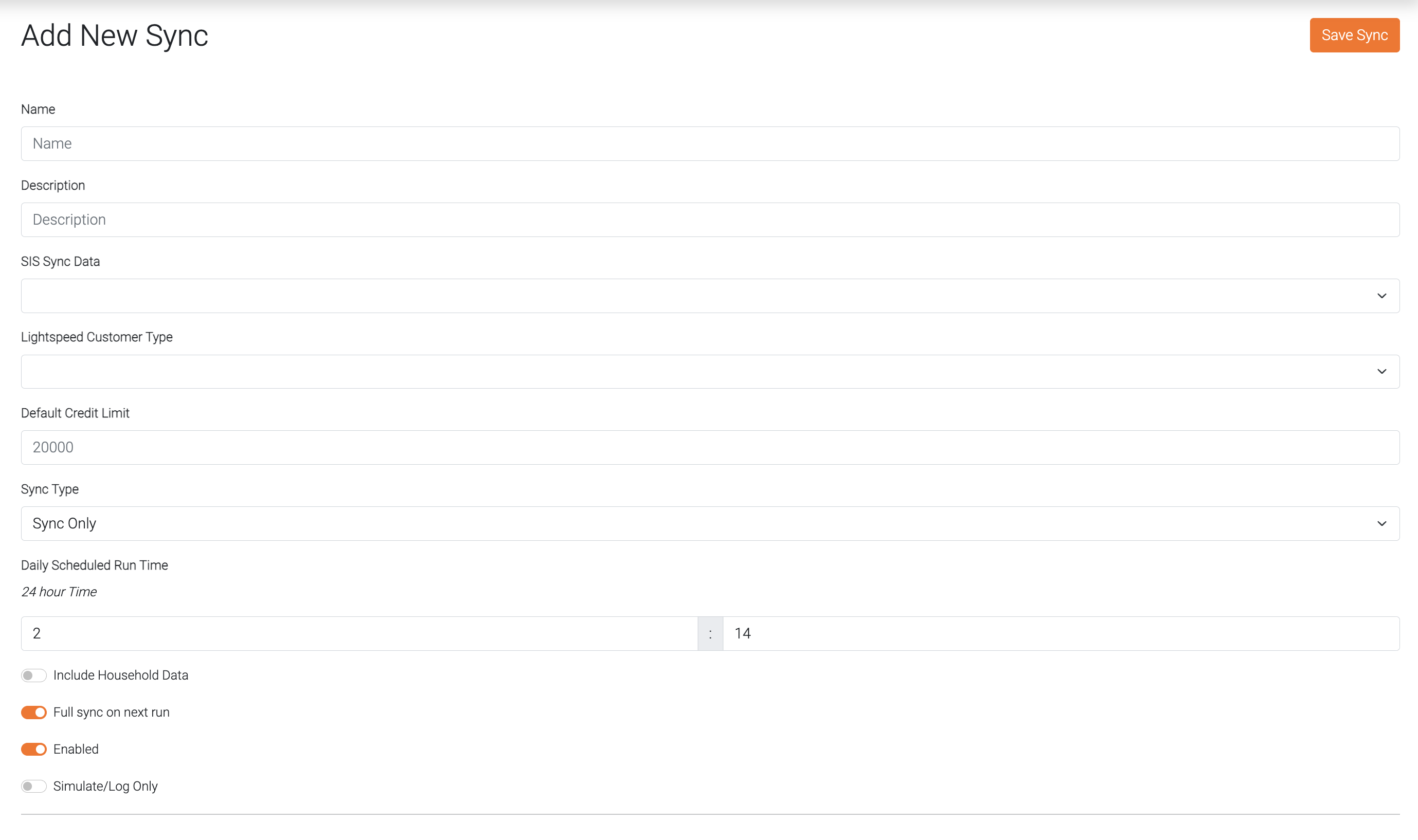
Name
This is a name for the sync.
Description
A brief description of what this sync does.
SIS Sync Data
Select the Veracross SIS data to sync with Lightspeed.
Lightspeed Customer Type
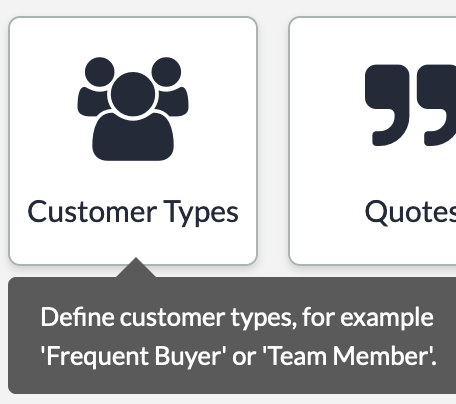
Select the CustomerType in Lightspeed that to sync SIS Sync Data with. Once the customer type is created in Lightpseed, it will appear as an option in the new sync form.
Records in Lightspeed are matched with Veracross based on a hidden field named companyRegistrationNumber.
Default Credit Limit
This is the amount to assign to the customers credit account when the account is first created.
Sync Type
Select "Sync Only" to only sync data from Veracross to Lightspeed.
"Sync and Safe Delete" will delete customers in Lightspeed that are no longer in Veracross and do not have a balance. Customers will only be deleted if they have a zero balance. This option is to be used with the "Export and Clear" type in Exports which helps ensure that you have exported the data before deleting a record. See "Export and Clear" under Add Export.
"Sync and Force Delete After 30" will delete customers from Lightspeed-R after they are no longer found in Veracross after 30 days. This works without the need to Export and Clear as in the Sync Safe Delete option. A datashutl tag will be prepended to the Notes field of the Lightspeed-R customer to indicate (and track) when it should be deleted. The record will be deleted on the next sync that takes place after the time set in the Notes field.

Include Household Data
Selecting this will populate the mailing address found in Veracross for the customer in Lightspeed.
Full Sync Next Run
When creating a new sync, this will be enabled by default. After a completed full sync, only the changes found from the last successful sync will be synced to Lightspeed. Select this at anytime to force a full sync of all customers in this sync.
Note: The staff_faculty endpoint in Veracross doesn't support the on_or_after_last_modified_date parameter. To work around this, datashutl will store a sum hash of the data from the last sync to compare to in subsequential syncs. This will help determine if a data has changed since the last sync.
Enabled
Select to enable or disable this sync from running on schedule.
Simulate/Log Only
This option will allow you to simulate the what would happen on a sync only logging the action that would be taken. This option is enabled by default.
Email Notifications
Select users to receive email notifications when this sync runs. Users must be listed in datashutl "manage Users" section. If you only want the user to receive notification emails, then you may select their permissions to "No module access".
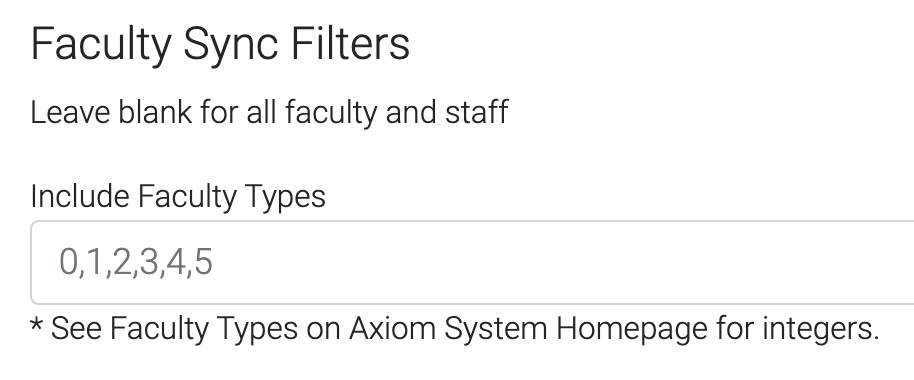
Faculty Filters
Enter the Veracross id numbers for faculty types that this sync should include. Blank will include all faculty/staff.
For a list of Faculty Types, login to Veracross Axiom, select the System Homepage, and select Faculty Types query link.
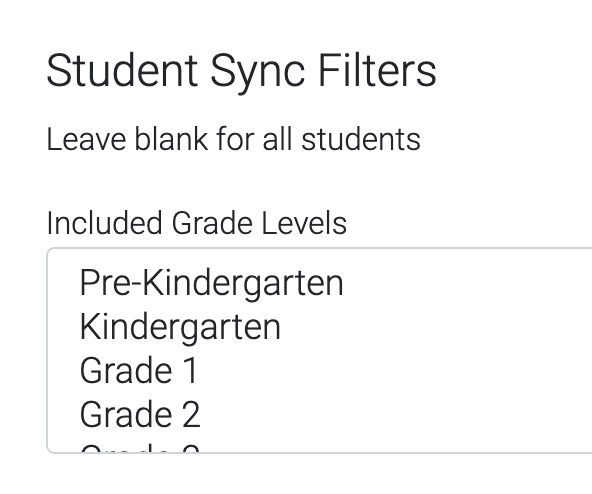
Student Filters
Select the student grade levels that should be included in this sync. Use CTRL-Click to select multiple grade levels. Not selecting any grade levels will result in all grades being synced.